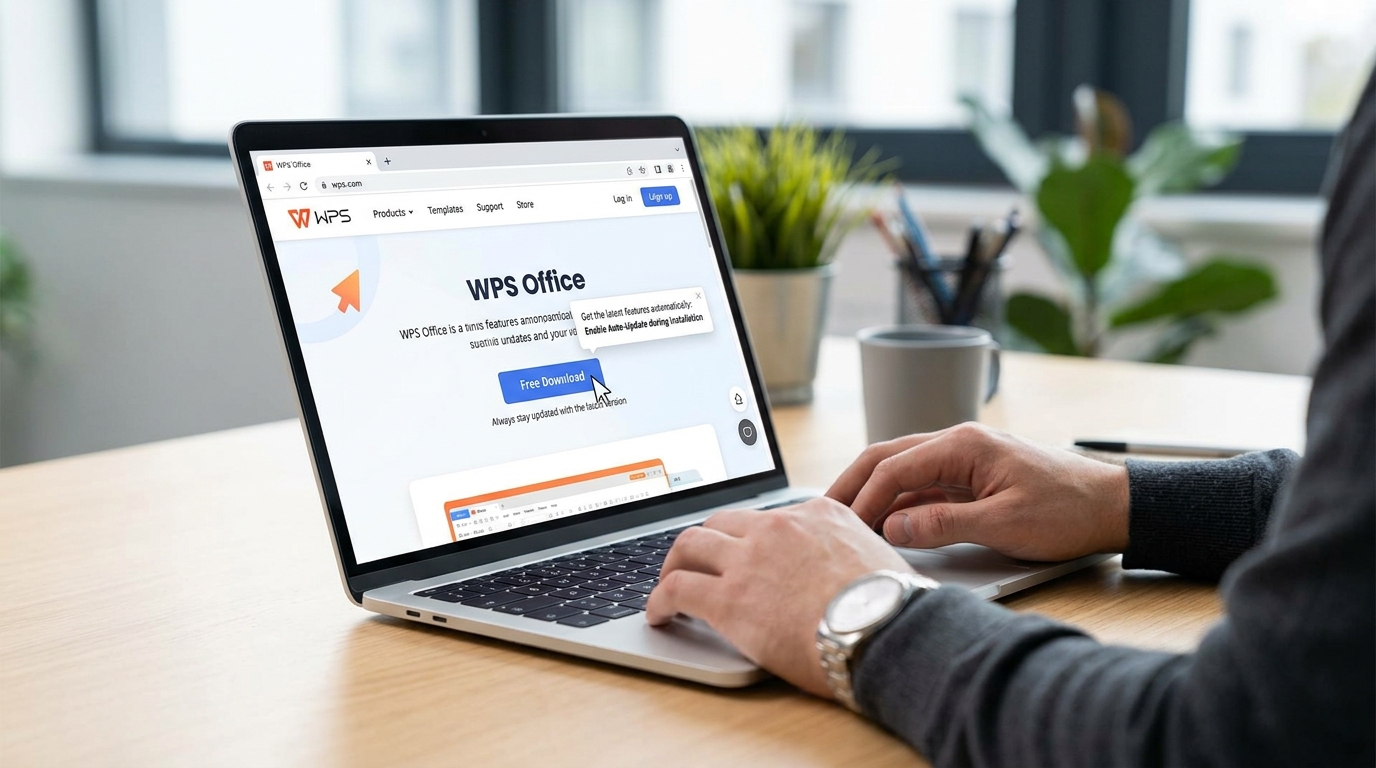

WPS Office is widely used for documents, spreadsheets, and presentations, and keeping it updated is important for security, performance, and new features. Enabling auto-update ensures you always have the latest version without manually checking for updates. This guide explains how to turn on auto-update using official settings inside WPS Office.
Open WPS Settings and Access Update Options
To begin, open any WPS Office application such as Writer, Spreadsheet, or Presentation. From the home screen, go to the Settings or Global Settings option. Inside the settings menu, find the section labeled About WPS Office or Update Settings.
In this section, you will see options to check your current version and manage updates. You can click Check Update to see if a new version is available or proceed to configure automatic updates for future releases.
Enable Automatic Update Feature
Once inside the update settings, look for the option related to automatic updates. Enable the setting that allows WPS Office to download and install updates automatically. This ensures that important improvements and security patches are installed without manual effort.
After enabling it, WPS will periodically check for updates in the background and install them when available. This keeps your software updated with the latest features, bug fixes, and performance enhancements.
Choose Your Update Preferences
WPS Office also allows users to customize how updates are installed. You can choose options like automatic installation or notification-based updates. If you select automatic installation, updates will be downloaded and installed without asking for permission.
If you prefer more control, you can set it to notify you first before installing. This option is useful if you want to review changes before updating the software.
Restart and Verify Update Settings
After enabling auto-update, restart your WPS Office application to apply the changes. You can also go back to the About WPS Office section to confirm that auto-update is active and working properly.
It is recommended to occasionally check the version manually to ensure everything is functioning correctly. Even with auto-update enabled, manual checks help verify that your software is fully up to date.
Frequently Asked Questions
What is auto-update in WPS Office
It is a feature that automatically installs the latest updates without manual checking.
Is auto-update safe
Yes, it helps keep your software secure and up to date.
Can I disable auto-update later
Yes, you can change update settings anytime from WPS settings.
Do updates affect my files
No, updates do not delete or modify your documents.
Why should I enable auto-update
It ensures better performance, security, and new features automatically.
Conclusion
Enabling auto-update from the official WPS Office settings is a simple but important step to keep your software secure and efficient. It saves time, ensures you always have the latest features, and reduces the risk of bugs or security issues. By turning on this feature, users can enjoy a smoother and more reliable experience without worrying about manual updates.